
Viewers can't understand you
When you stream on TikTok Live across regions, overseas viewers who can't understand you simply swipe away — chat engagement drops and watch time suffers.
 Real-time speech translation

 Seamless integration
AI generates captions in up to 3 languages in real time.Set up in 60 seconds and go live across languages.New users get free translation time on sign-up — no credit card required
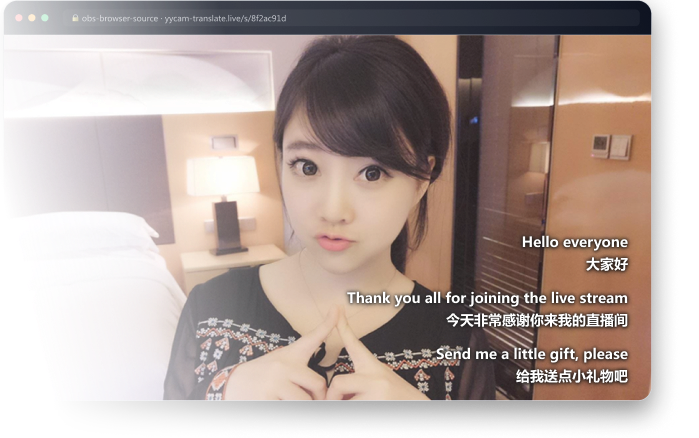
More and more viewers watch across languages, yet caption solutions either rely on local models or are complicated to configure — so a creator's first multilingual stream often stalls at the very first step: adding captions.
When you stream on TikTok Live across regions, overseas viewers who can't understand you simply swipe away — chat engagement drops and watch time suffers.

Downloading local models, installing plugins and repeatedly debugging browser sources — the setup burden is high, and a single configuration can take hours.

Default caption styles look stiff, with no control over color, outline or background — so they rarely fit the look a streamer has already built.
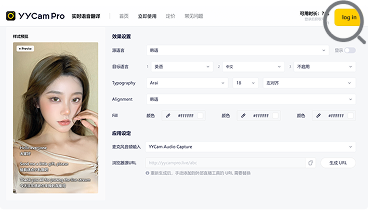 1.0
Choose your microphone, source language and up to 3 target languages, with a live caption preview.
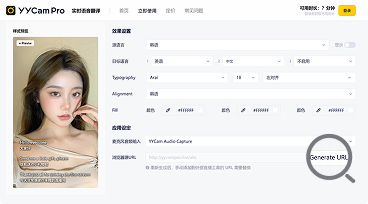 2.0
After agreeing to the audio capture agreement, generate your dedicated browser source address in one click.
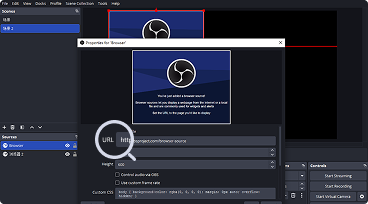 3.0
Paste the URL in “Sources → Add → Browser”, then click Start translation to put captions on screen.

Click “Start translation” to open the real-time speech translation settings page, then choose your microphone, source language, target languages, and caption style. When you're done, a caption URL is generated. Add that URL as a Browser Source in OBS or your streaming tool, then click “Start translation”.
Generate and copy the caption URL on the translation settings page, then in OBS choose “Sources → Browser”, paste the URL and confirm — captions with a transparent background will appear on your stream.
We currently support Chinese, English, Japanese and Korean. On the settings page you can choose the source language and target languages, with up to 3 target languages at once.
Yes. On the settings page you can adjust the font, size, text color, opacity, outline, caption background, background transparency and alignment. The preview updates in real time.
No client or plugin needed. Just open the web page — but you do need to allow microphone access and keep a stable internet connection.
Yes. Once you regenerate the URL, the old one stops working immediately and any live stream still using it will stop loading captions. You'll need to copy the new URL and manually replace the old address in your OBS browser source.
Time starts being deducted once you click “Start translation” and the translation task is successfully created. Free time is used first, then paid time. The task stops automatically when you stop it manually, when your time runs out, or after 20 minutes of continuous silence with no valid transcription.