YYCam Pro NDI Feature and OBS Integration Guide
This guide explains how to use YYCam Pro’s NDI input/output capabilities together with OBS Studio to help you build a more flexible and professional live streaming and production workflow.
1. What is NDI?
NDI (Network Device Interface) is a protocol that transmits video, audio, and data over IP networks. It enables low-latency, discoverable signal sharing within the same local area network (LAN), making it ideal for multi-camera and multi-software live production environments.
YYCam Pro fully supports both NDI input and output. This means you can:
- Send video and audio processed by YYCam Pro to OBS Studio as a signal source.
- Send the final composited output from OBS Studio back to YYCam Pro via NDI for further beautification, recording, or distribution.
2. Preparation
1. Software and Plugins
- YYCam Pro: Make sure you are using a version that supports NDI (upgrading to the latest version is recommended).
- OBS Studio: It is recommended to use a recent version. Download from: https://obsproject.com/download
- OBS NDI Plugin: If OBS does not have built-in NDI support, you need to install the obs-ndi (DistroAV) plugin. Download: https://github.com/DistroAV/DistroAV/releases
- Tips:
- When installing the NDI plugin, select the OBS Studio installation directory as the target path.
- After installation, it is recommended to restart the system (or at least restart OBS) to ensure the plugin loads correctly.
2. Network Recommendations
- All devices (PCs, phones, etc.) must be connected to the same local area network (a wired connection is recommended for stability).
- NDI requires relatively high network performance. A Gigabit wired network is recommended to ensure stable transmission and low latency.
3. Sending YYCam Pro Video to OBS Studio
Applicable Scenario
- Complete beautification, camera management, and media overlay in YYCam Pro, then use OBS for switching, streaming, or recording.
Steps
Step 1: Enable NDI Output in YYCam Pro
- Launch YYCam Pro and enter the main interface.
- Go to 'Settings' →' Output Settings.'
- Set the 'output resolution' and 'output frame rate' to match OBS settings. It is recommended to start with 1080p30 to verify connection stability, then gradually increase frame rate or resolution.
- Enable the 'NDI Output' option.
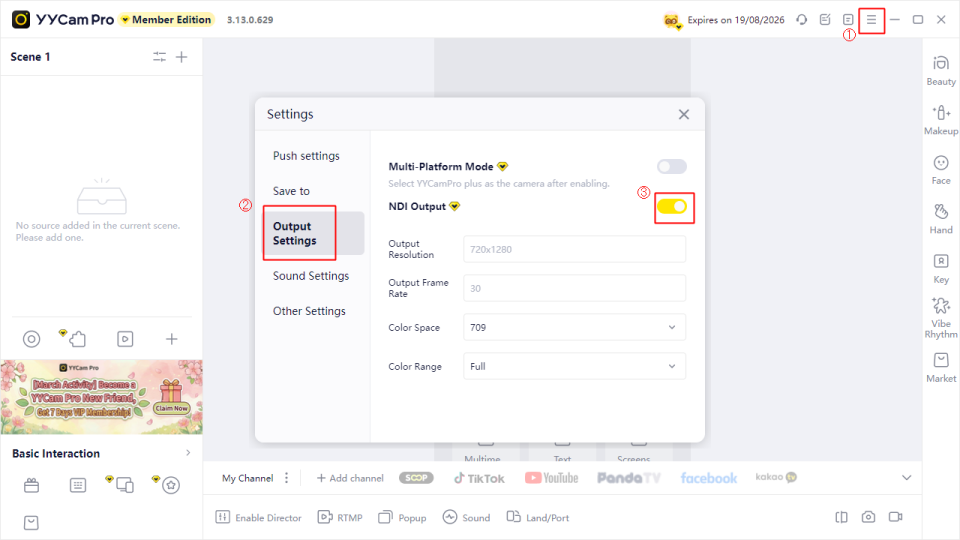
Step 2: Add an NDI Video Source in OBS Studio
- Open OBS Studio and click the '+' button in the 'Sources' panel.
- Select 'NDI Source' (if this option is missing, the NDI plugin is not properly installed).
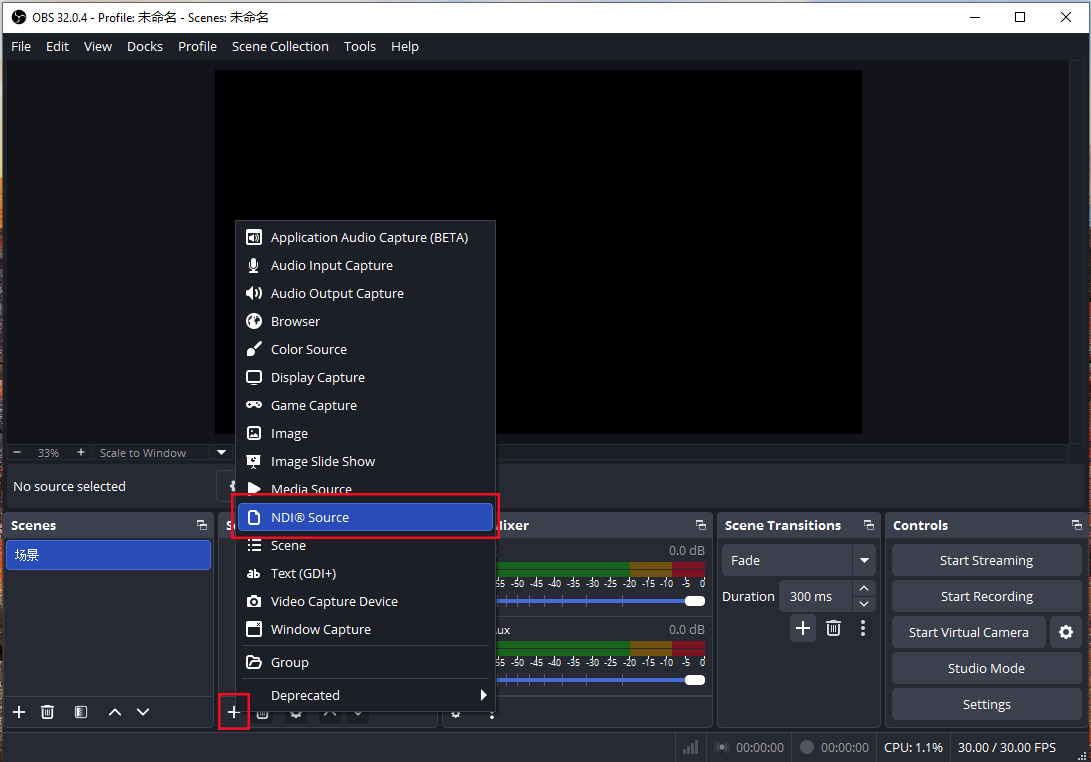
3. In the Properties window, select 'YYCamProNDI' from the Source Name dropdown list.
4. Adjust audio track settings if necessary, then click 'OK' to complete.
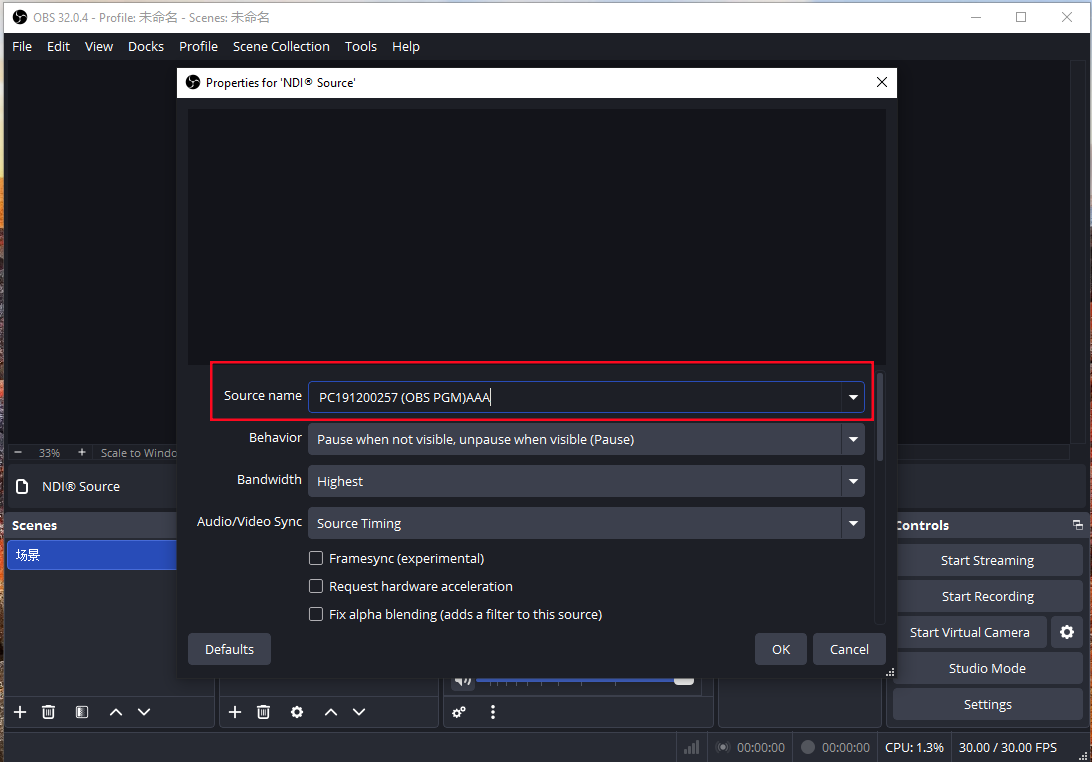
5. The YYCam Pro video should now appear in the OBS preview window. You can further adjust its position and size as needed.
4. Sending OBS Studio Output to YYCam Pro
Applicable Scenario
- Complete multi-camera composition, subtitles, and media playback in OBS, then send the final output to YYCam Pro for beautification, special effects, or secondary distribution.
Steps
Step 1: Enable NDI Output in OBS Studio
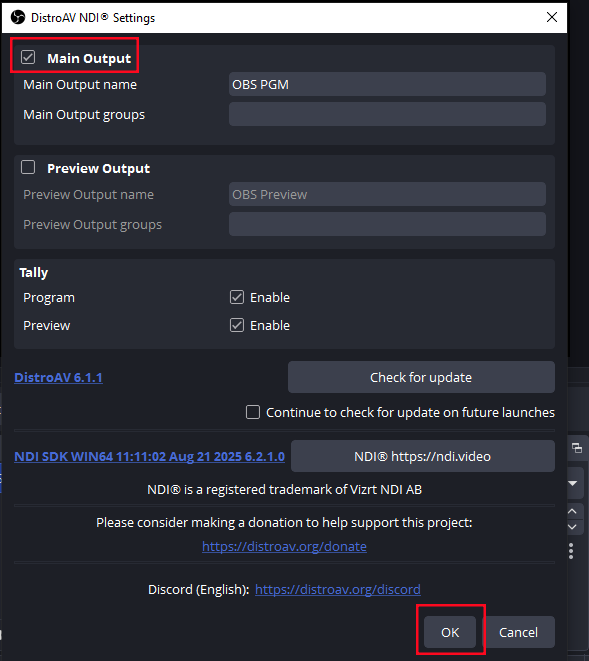
- In the OBS menu bar, select 'Tools' → 'DistroAVNDI Settings'.
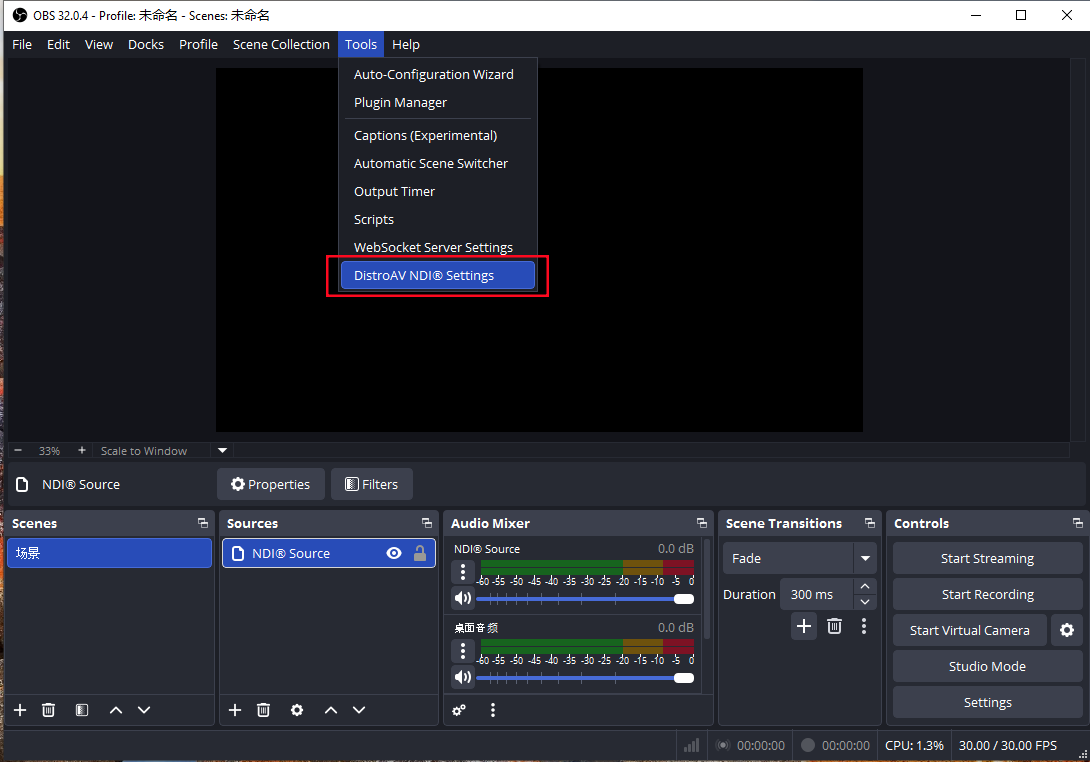
2. Check Enable 'Main Output'.
3. Set a unique name for the output stream.
4. Click 'OK'. OBS will begin outputting the program feed via NDI.
Step 2: Add an NDI Input Source in YYCam Pro
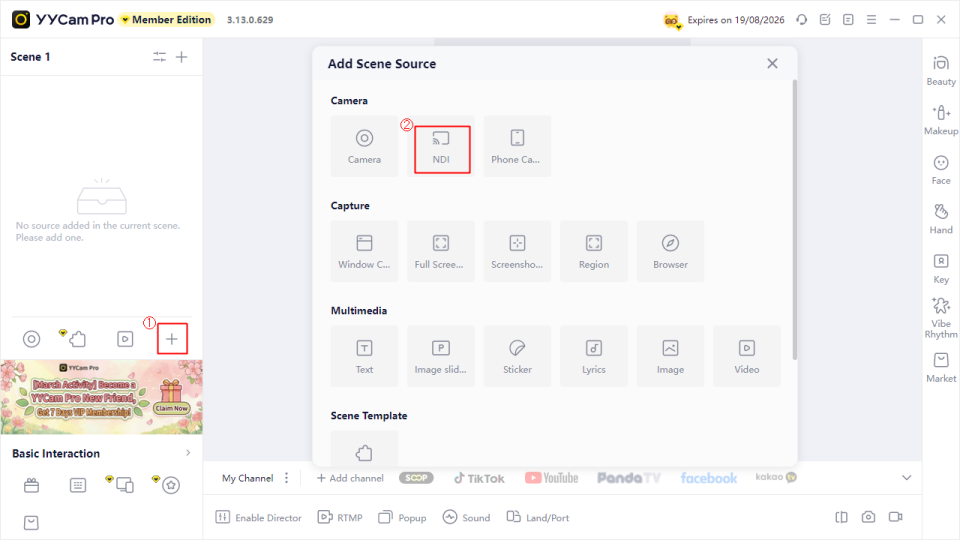
- Return to the YYCam Pro interface.
- In the video source area, click '+' and select 'NDI' as the source type.
3. From the list of available NDI sources, select the name you set in OBS.
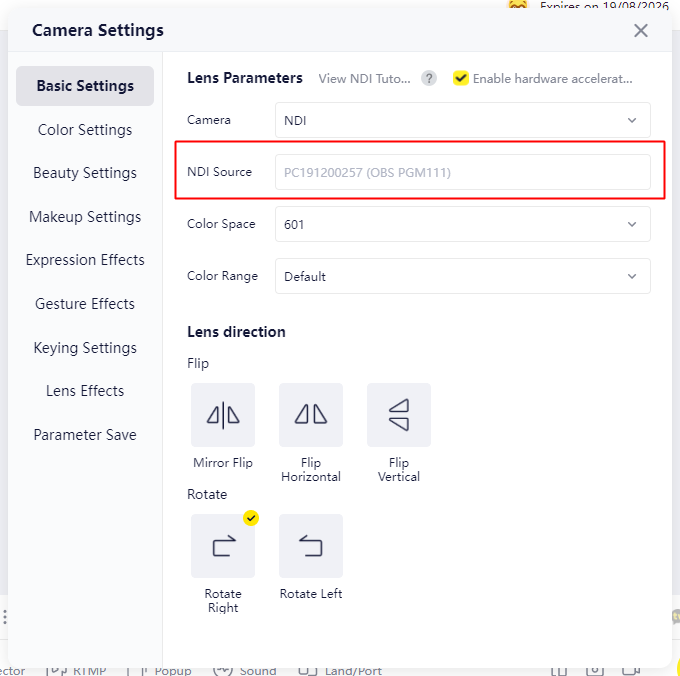
5. Once successfully added, the OBS composited output will be available as a video source in YYCam Pro.
6. You can apply beautification, filters, stickers, and other effects in YYCam Pro, and then output via virtual camera or streaming features to other platforms or conferencing software.
5. Troubleshooting
1. NDI Source Not Visible in OBS or YYCam Pro
Check the following in order:
- Are both devices on the same LAN/subnet?
- Is the firewall (Windows Firewall or third-party security software) blocking the connection?
- Is the OBS NDI plugin installed correctly and version-compatible?
- Is a VPN or virtual network adapter interfering with NDI discovery?
- Try restarting YYCam Pro and OBS, or rebooting the router/switch to clear mDNS/discovery cache issues.
2. Video Lag or High Latency
- Use a wired network connection
- Lower the output resolution or frame rate
- Check network bandwidth usage
- Monitor CPU/GPU usage; reduce filters and effects in OBS if necessary
3. Video Present but No Audio
- In OBS [Advanced Audio Properties], confirm the source is not muted and the correct audio tracks are selected
- If echo occurs, avoid capturing both local microphone input and NDI-embedded audio simultaneously
6. Conclusion
The above outlines the common integration methods between YYCam Pro and OBS using NDI. We will continue optimizing NDI stability and compatibility.
If you encounter any issues during use or have feature suggestions, please contact us through official channels. We will follow up as soon as possible.