Welcome to YYCam Pro. This guide helps you quickly connect your phone camera to YYCam Pro on your computer for high-quality, low-latency video—ideal for live streaming, online classes, meetings, and content creation.
Before You Start
Please confirm the following:
- YYCam Pro (Windows) and YYCam Pro App (IOS / Androrid) are installed and updated to the latest version.
- For wireless connection: your phone and computer are on the same Wi‑Fi network (stable, low-traffic network recommended).
- For wired connection: prepare an original or high-quality data-capable cable (Type‑C/Lightning recommended).
Method 1: Wireless Connection (Wi‑Fi)
Best for flexible camera placement and situations where cables are inconvenient.
Steps
1) Add a mobile camera on the desktop
- Open YYCam Pro (Windows) and go to the main screen.
- Click “+” on the left menu and select “Mobile Camera”.
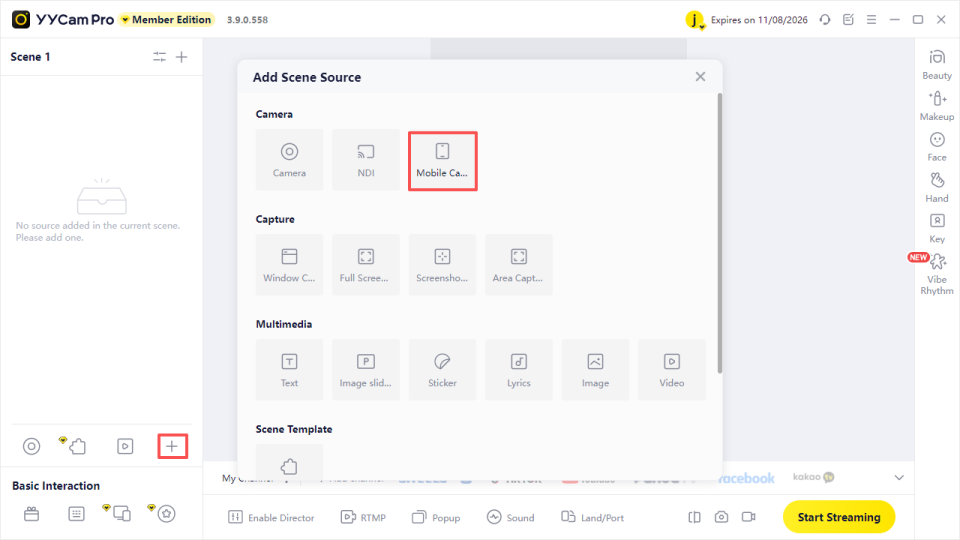
2) Select Wi‑Fi mode
- In camera settings, choose“Wireless Connection”
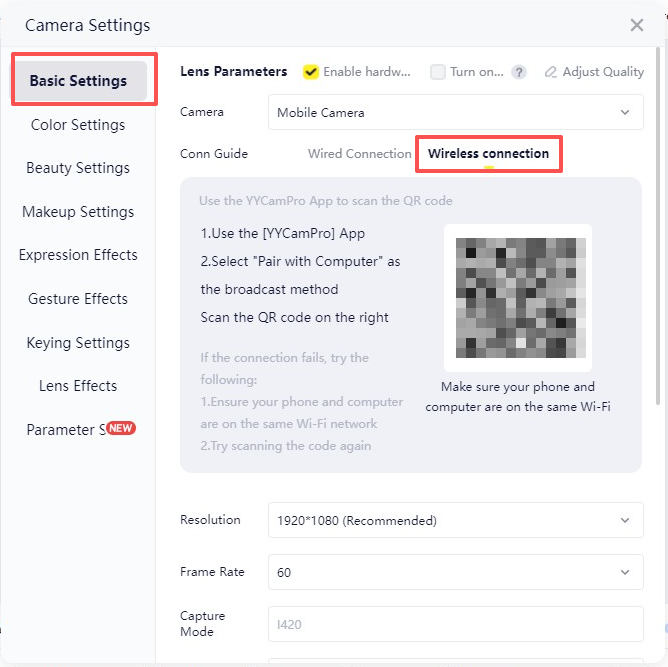
3) Pair from the mobile app
- Open YYCam Pro App on your phone.
- Ensure the phone and computer are on the same Wi‑Fi.
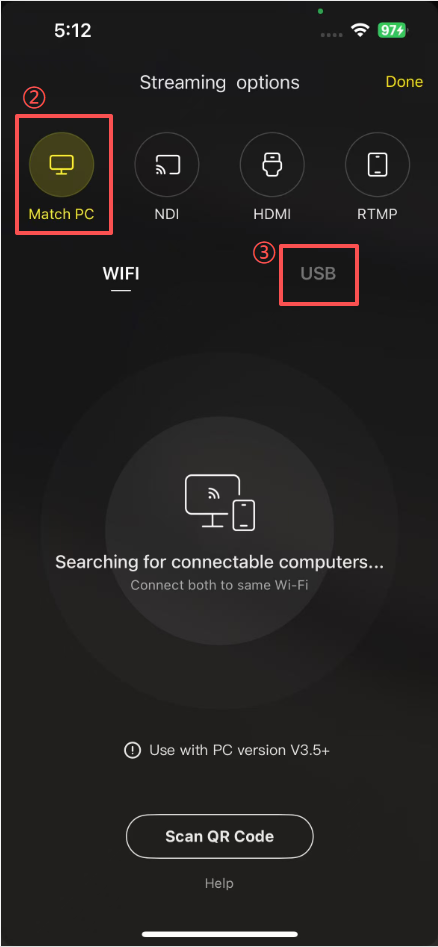
- In the app, go to “Live-streaming Method”→“Match‑PC”→“WIFI”, then scan the QR code shown on the desktop.
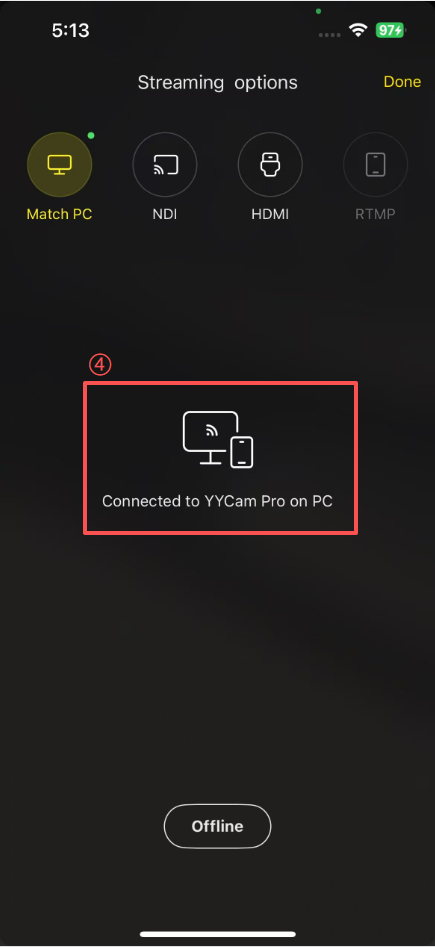
- When the phone displays “Connected”, pairing is successful.
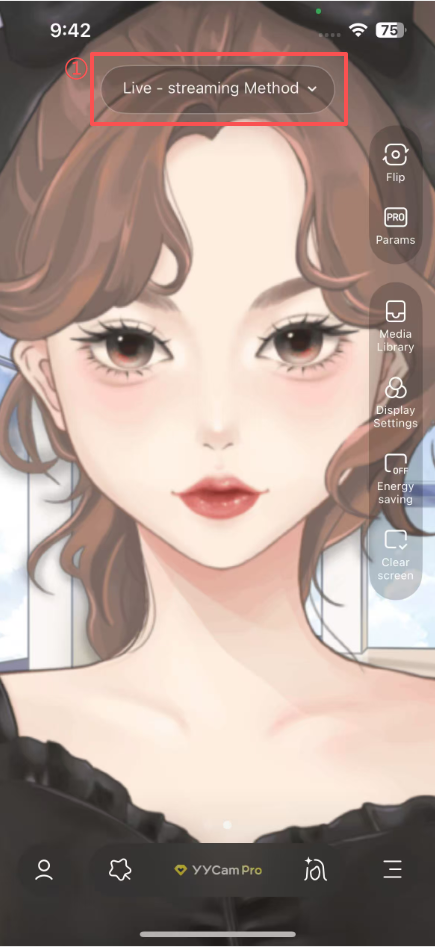
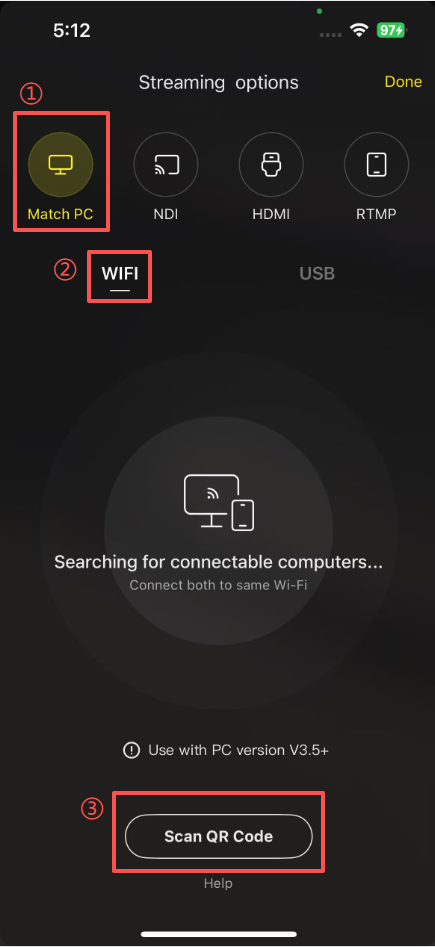
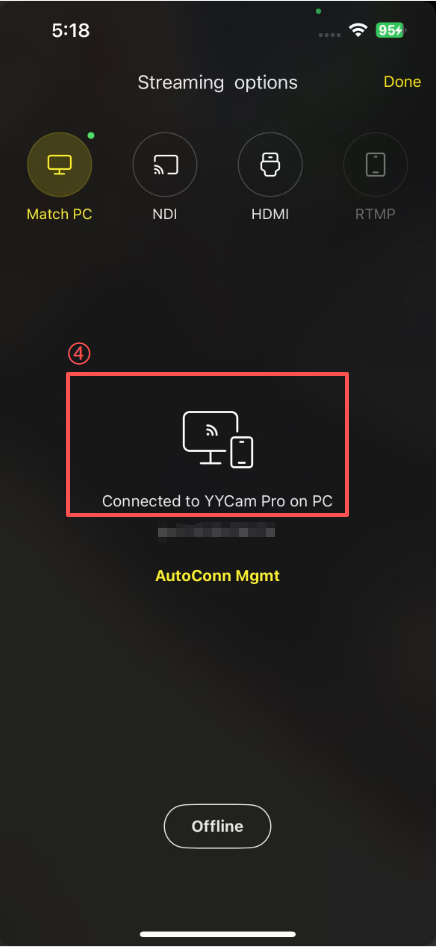
4) Confirm preview and permissions
- On first connection, your phone may request camera/microphone permissions—please allow them.
- Return to the desktop app and confirm the phone’s video feed is displayed.

5) Adjust settings (Optional)
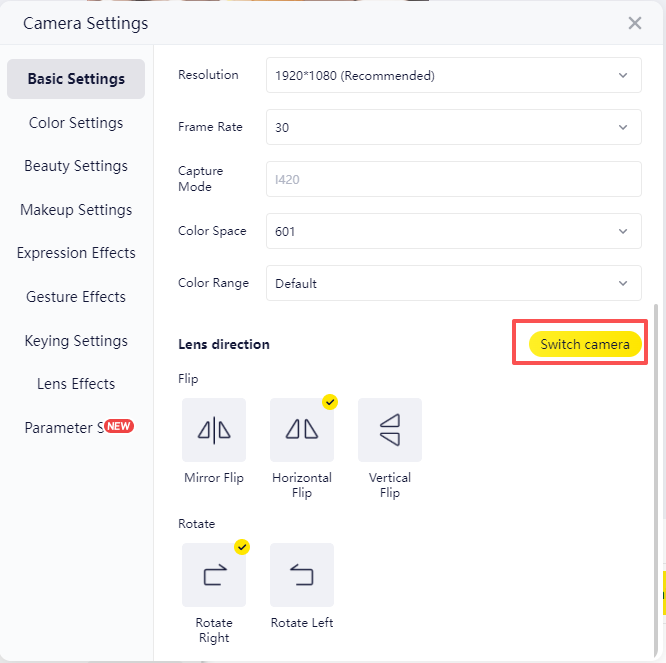
After connecting, you can adjust resolution, frame rate, rotation/mirror, orientation, etc.
- To switch lenses, click“Switch Camera”to toggle between front/rear cameras.
Tips
- Use 5GHz Wi‑Fi whenever possible, and avoid congested networks.
- If latency is high, move closer to the router or lower resolution/frame rate for better stability.
Method 2: Wired Connection (USB)
Typically more stable and lower latency—recommended for scenarios requiring reliable sync and consistent performance.
Steps
1) Connect your phone to the computer
- Use a USB data cable to connect the phone and computer.
- If prompted on the phone, follow the system instructions to “Trust this computer” or enable required permissions (e.g., USB debugging, if applicable).
2) Open camera management on desktop
- Open YYCam Pro (Windows) and go to “Camera” management.
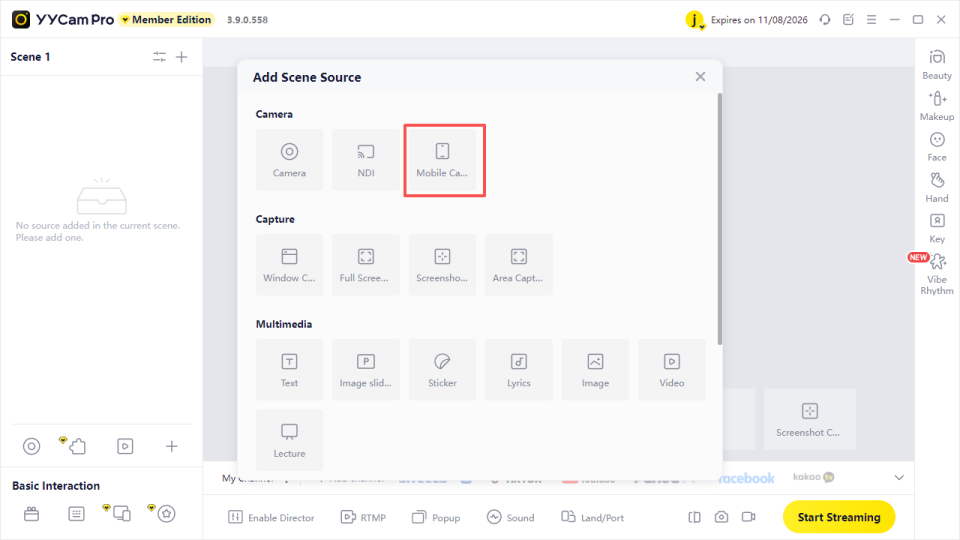
3) Select USB mode
- Click “Basic Settings” and choose “Wired Connection”.
- The software will automatically detect your phone.
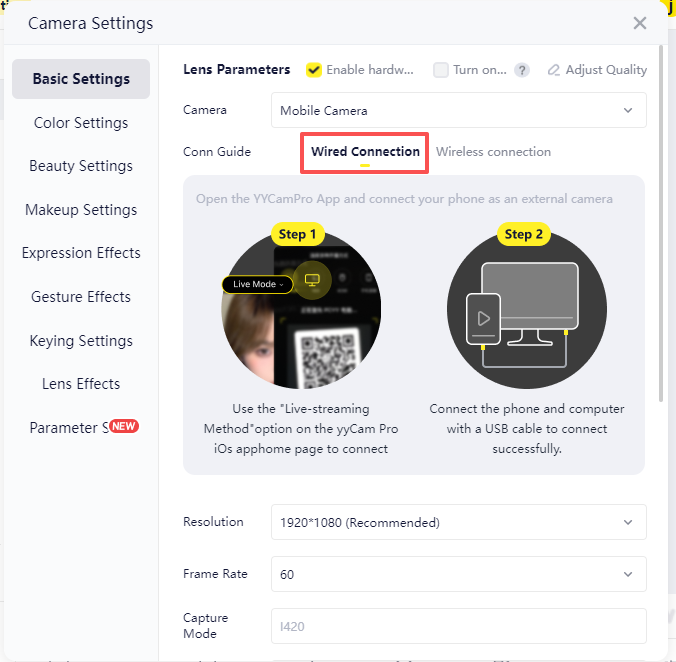
4) Select USB pairing on the phone
- On the phone app, go to “Live-streaming Method”→“Match‑PC”→“USB”.
- When the phone displays “Connected”, the connection is successful.
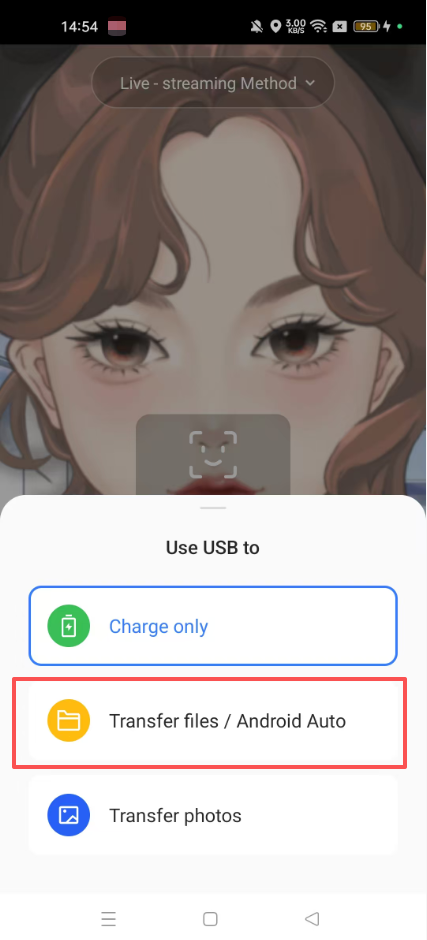
Note (Android): Some devices may require selecting “File Transfer (MTP)” or “PTP” in the system USB options for more reliable detection.
5)Start using
- After connecting, the phone video will appear inYYCam Pro (Windows)in real time.
- You can adjust image settings, filters, and more in the software.

USB Connection Failed — Quick Checks
Try the following in order:
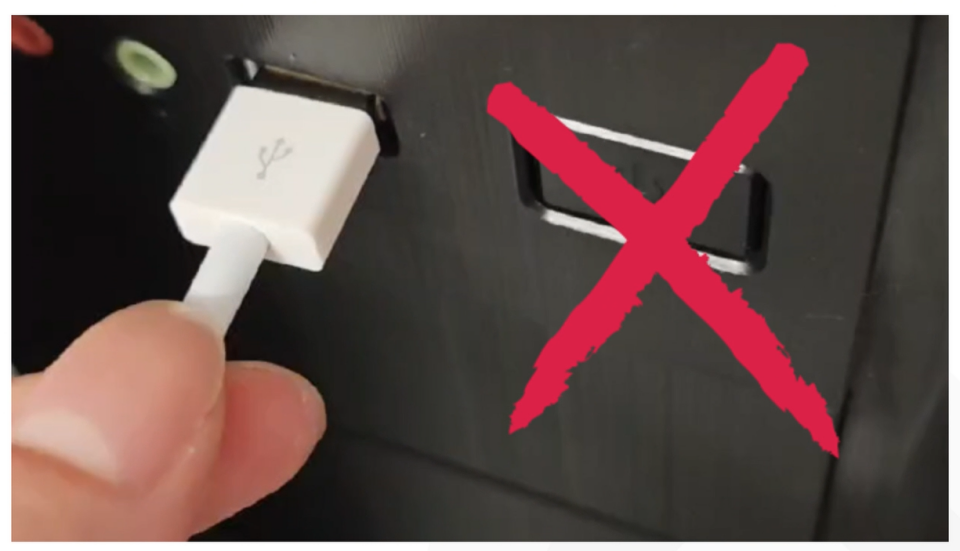
- Reconnect the cable and try another USB port.
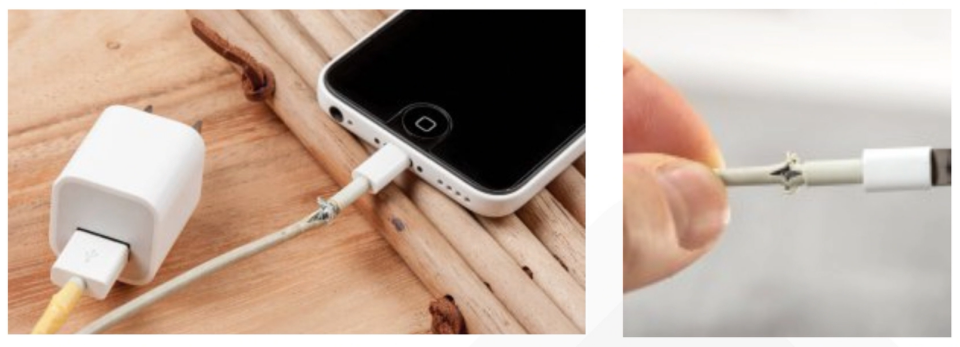
- Confirm the cable supports data transfer(some cables are charging-only).
- Switch to a higher-quality cable (recommended: original or high-quality Type‑C/Lightning).
- Restart YYCam Pro; if needed, restart both phone and computer.
USB Driver Setup (Windows)
If you see driver prompts or the computer cannot detect your device:
Open “Device Manager”
- Option 1:Win + X→Device Manager
- Option 2: Right-click This PC→Manage→Device Manager
- Option 3: Search Device Manager in Start Menu
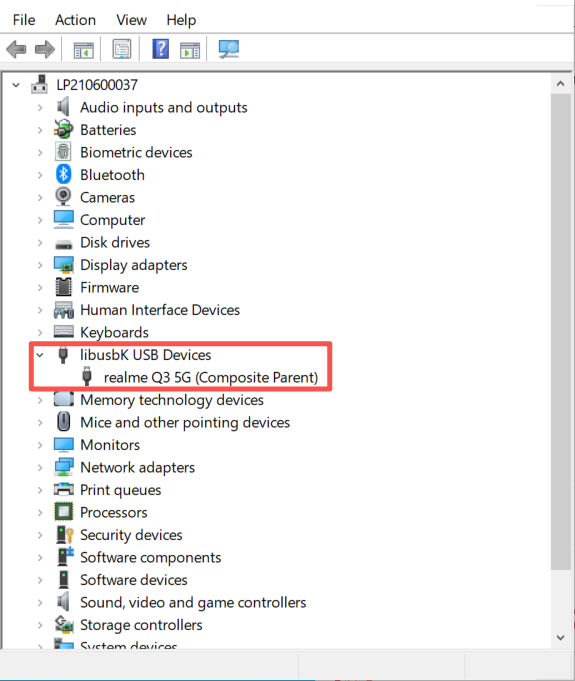
Recommended driver installation flow
- Connect the phone to the computer via USB
- Reopen YYCam Pro (Windows)
- Enable the mobile camera feature in YYCam Pro; the system will attempt to install/update drivers automatically
- Wait for completion, then restart the computer
- Reconnect and try again

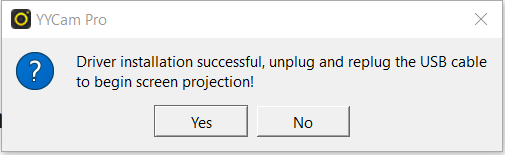
Note: Driver behavior may vary by device and OS version. If detection still fails, try another cable/USB port and ensure phone permission prompts are allowed.
FAQ
1) What if the connection fails?
- Wi‑Fi:Check whether firewall/security software blocks YYCam Pro network access; confirm both devices are on the same network.
- USB:Try a different cable/port; reconnect and restart the app.
2) Video stuttering or high latency?
- Wi‑Fi:Lower resolution/frame rate, or switch to 5GHz Wi‑Fi.
- USB:Often related to PC performance/background load—close high-usage programs.
3) Phone overheating and frame drops?
- Use external power, lower screen brightness, and avoid hot environments.
- For maximum stability, use 720p / 30fps.
Closing
YYCam Pro is committed to a simple and reliable camera connection experience for streaming and creation. If you need further assistance, please visit our Help Center or contact support.
YYCam Pro Team