RTMP Streaming Setup
1. Open RTMP
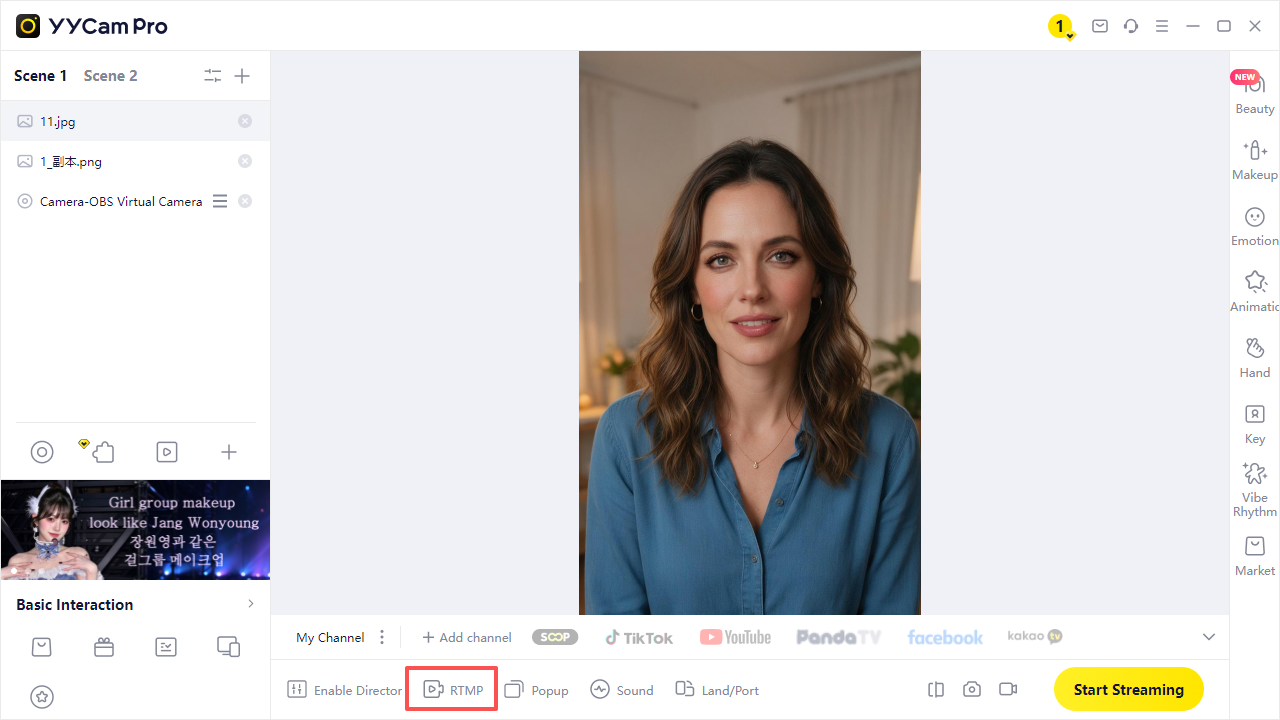
Click RTMP at the bottom of YYCam Pro to expand the channel bar.
2. Select or Add a Streaming Platform
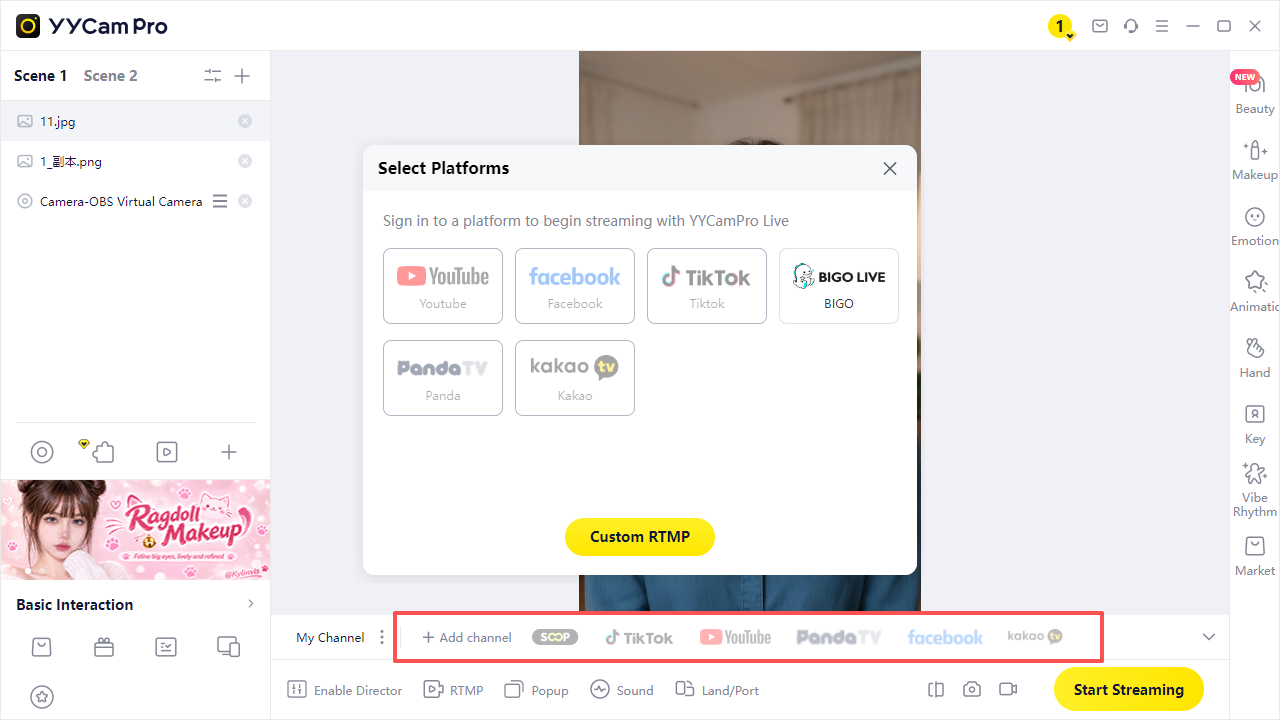
Select the platform you want to configure. If it is not listed, click Add channel to add one, or select Custom RTMP.
The platform selection helps you organize and distinguish your channels. It does not affect where your stream is sent. The server URL and stream key you enter determine the destination.
3. Enter Your Stream Details
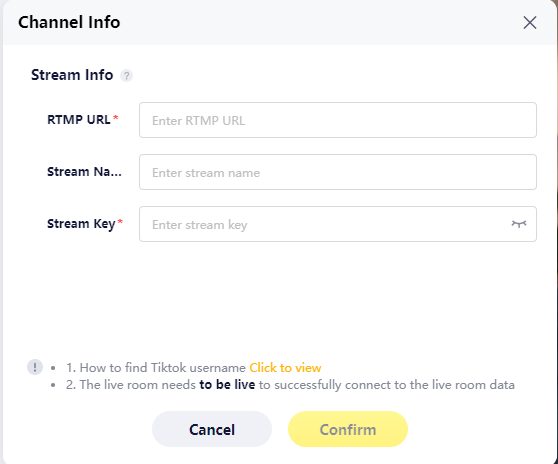
In the Channel Info window, under Stream Info, fill in these three fields:
- RTMP URL: Enter the server URL provided by your streaming platform.
- Stream Name: Choose a name, such as “TikTok Daily Stream.” This name is only for organizing your channels and does not affect streaming.
- Stream Key: Enter the stream key provided by your platform.
- When you have finished, click Confirm.
4. Start Streaming
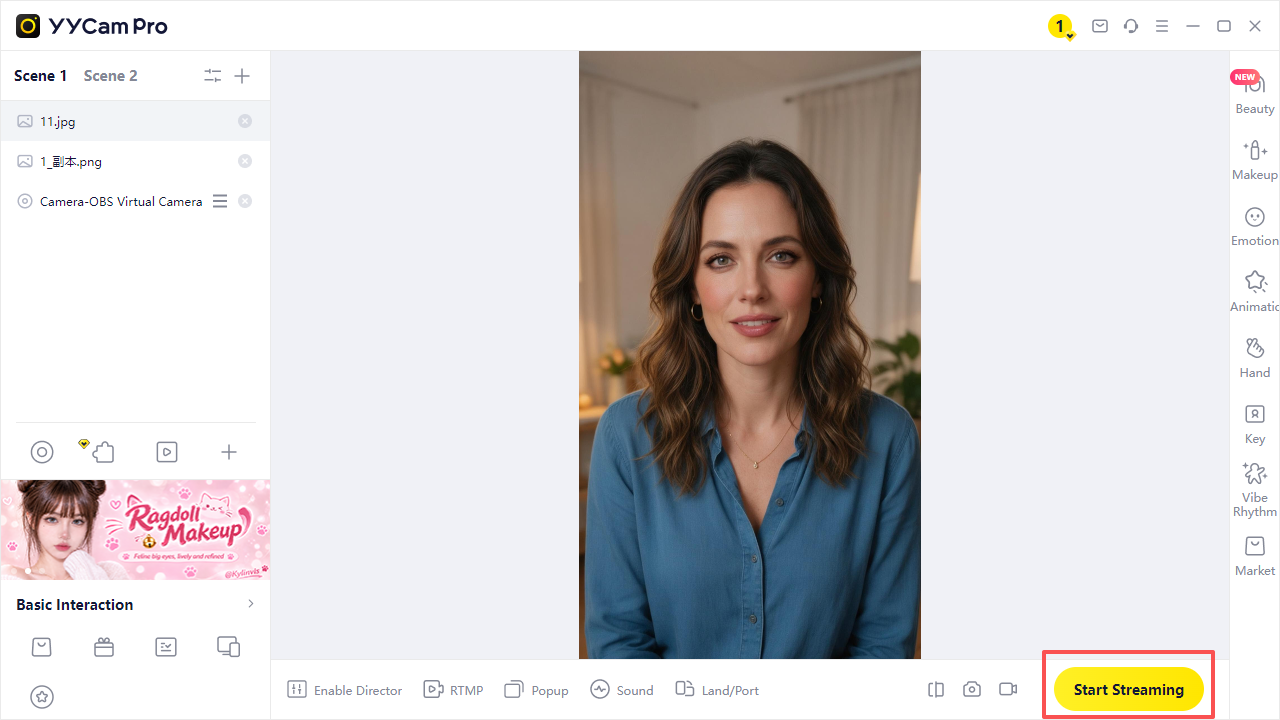
Once your video, microphone, and any other audio sources are ready, click Start Streaming in the bottom-right corner.
Return to your streaming platform to check the video, audio, and live status.
Example: Find Your TikTok Server URL and Stream Key
If you already have TikTok RTMP streaming access, follow the steps below to get the details for your session. If you do not yet have access, contact the platform to ask how to apply. TikTok RTMP access may require assistance from a TikTok LIVE Creator Network (an agency or creator network).
1. Find Your Streaming Details in TikTok LIVE Producer
① Open TikTok LIVE Producer in a desktop browser and sign in to the account you want to stream from.
② Follow the on-screen steps to create a LIVE session. Click Go LIVE, enter your session details, and select Save and go LIVE or the equivalent button shown on your screen.
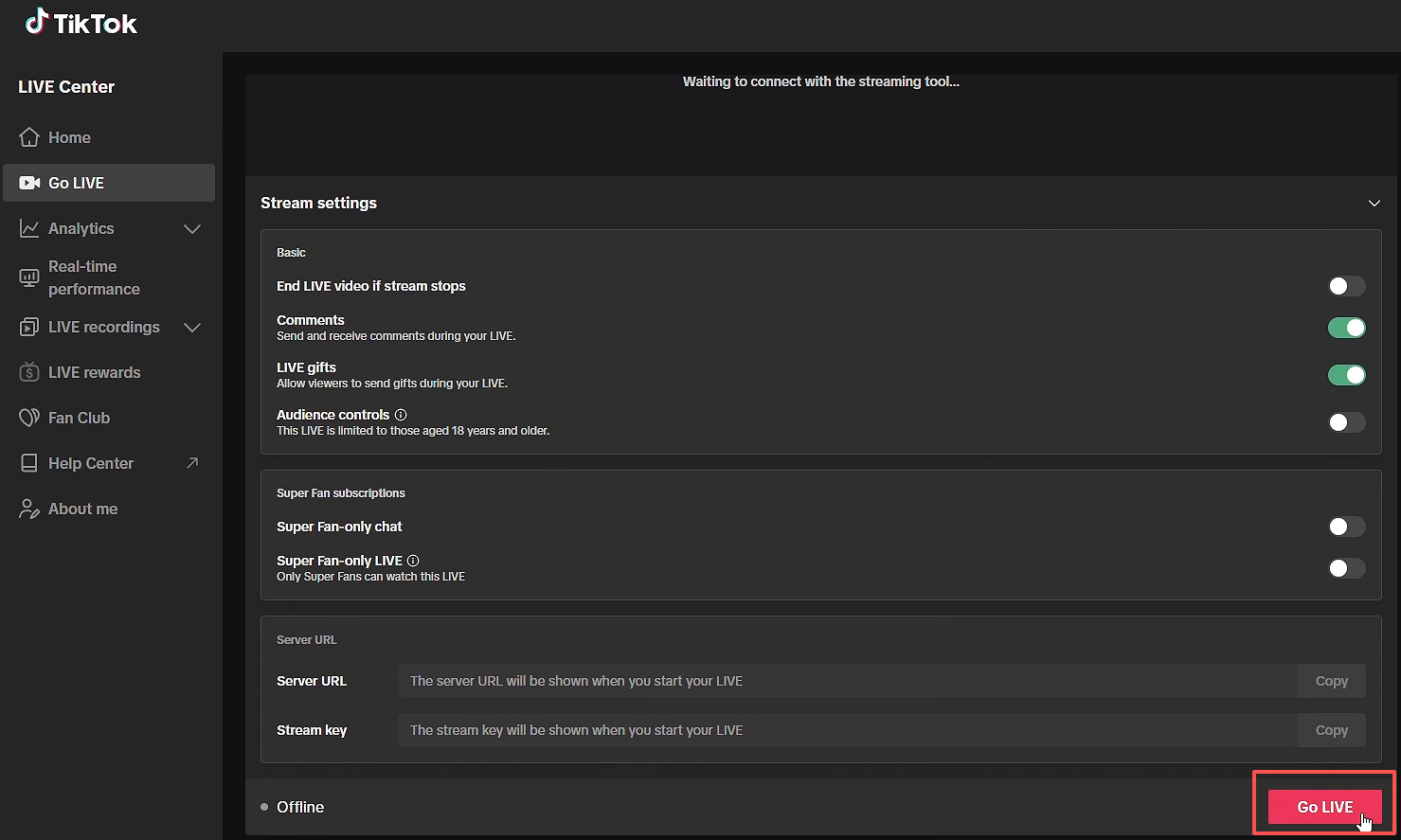
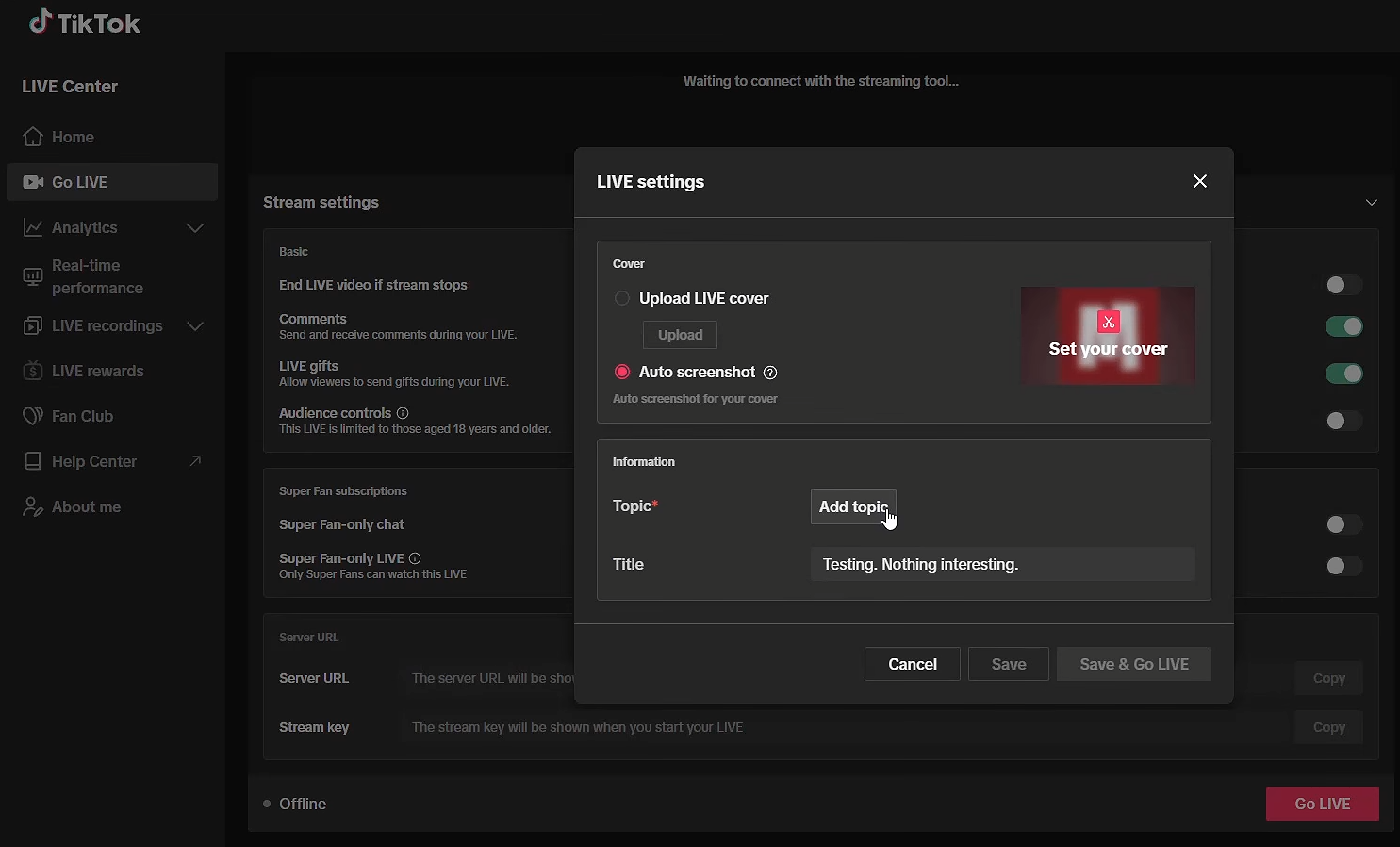
③ When the page displays Server URL and Stream Key, copy each one.
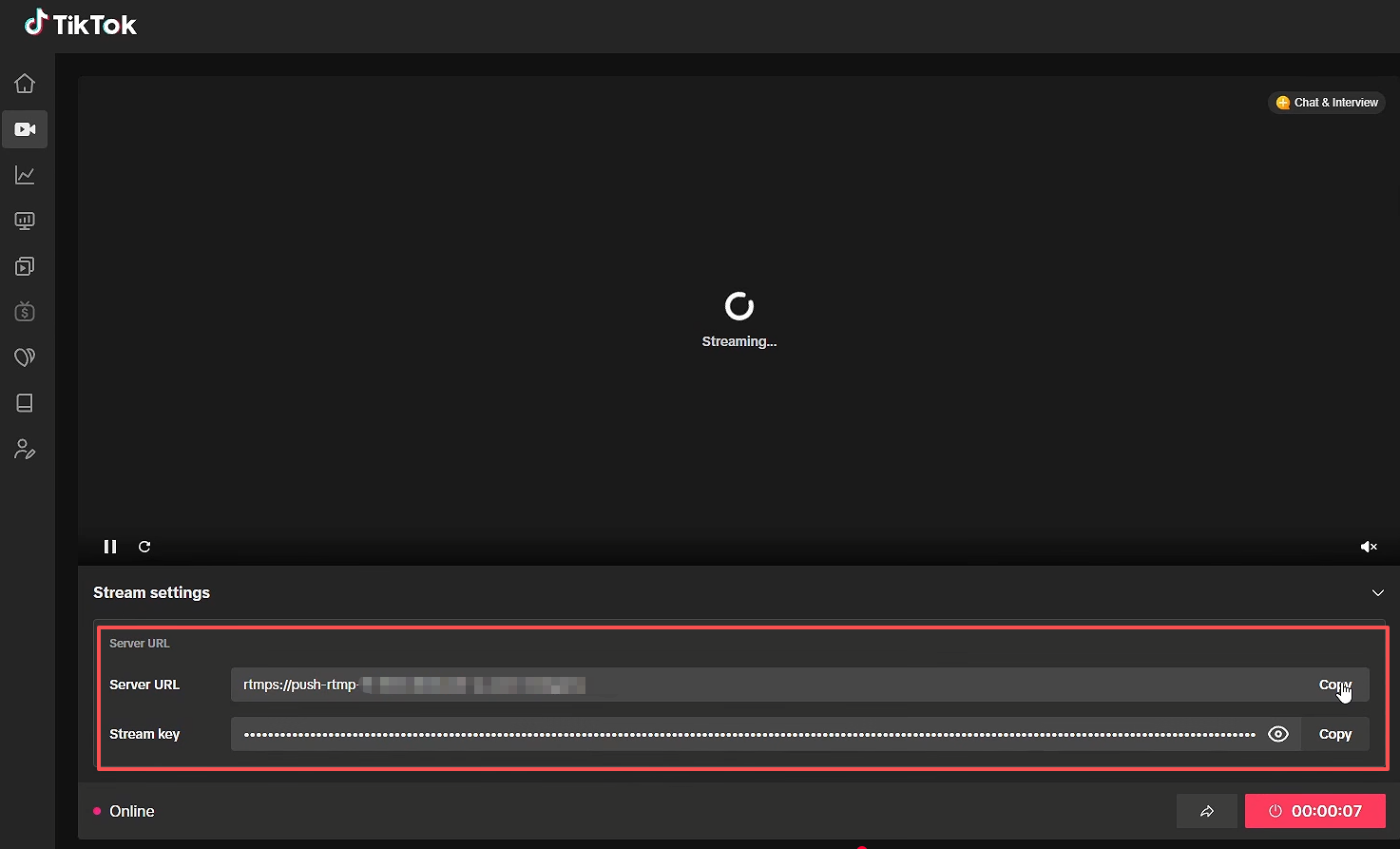
④ Return to YYCam Pro. Paste the Server URL into the RTMP URL field and the Stream Key into the Stream Key field. Choose a Stream Name, click Confirm, and then click Start Streaming.
Check the current TikTok page to confirm whether you are live. If streaming fails, verify that you are using the latest URL and key for the current session.
Frequently Asked Questions
1.Does selecting the wrong platform—or not finding it in the list—affect streaming?
The platform selection and stream name are for organizing your channels. They do not determine the streaming destination. Click Add channel or use Custom RTMP, then enter the correct URL and key from your target platform.
2.Why can’t I see Server URL and Stream Key on TikTok?
Make sure you are signed in to the correct account and that RTMP streaming access has been enabled. If you applied through an agency, contact it to confirm your access status.
3.What if streaming fails or the stream key is invalid?
Check that the URL and key are complete, entered in the correct fields, and contain no extra spaces. Make sure they are currently valid. For TikTok, retrieve the details for the current session and enter them again.
Your stream key is a streaming credential. Do not display it in public screenshots or documents, or share it with anyone who does not need access.