YYCam Pro Plugin Tool: Interactive Poll User Guide
1. Key Features
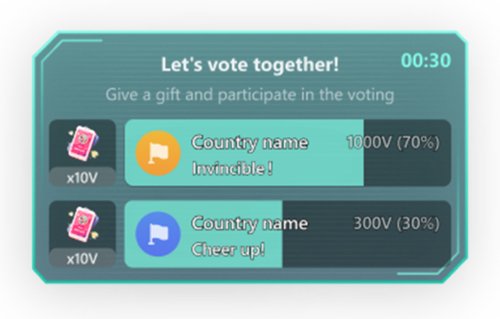
- Quick Poll Setup: Create and display a poll easily during your live stream.
- Real-Time Viewer Participation: Viewers can vote instantly based on the options provided.
- Live Result Display: Voting results update dynamically as viewers participate.
- Better Live Interaction: Suitable for topic discussions, content selection, event decisions, giveaways, and more.
2. Use Cases
You can use Interactive Poll in the following scenarios:
- Let viewers choose what content they want to watch next
- Start a discussion or opinion poll on trending topics
- Run interactive Q&A or giveaway selection during events
- Adjust your live content based on viewer feedback
- Improve engagement in matches, PK battles, talent shows, and similar live scenarios
3. How to Use
Follow these steps to use the Interactive Poll plugin:
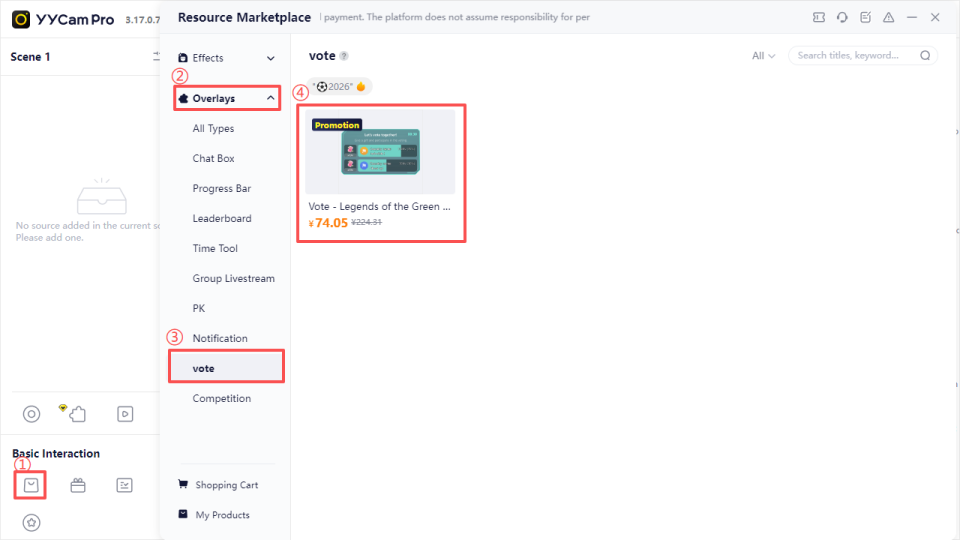
- Open "Resource Marketplace"
- Go to "Overlays"
- Select "vote"
- Choose your preferred poll plugin design
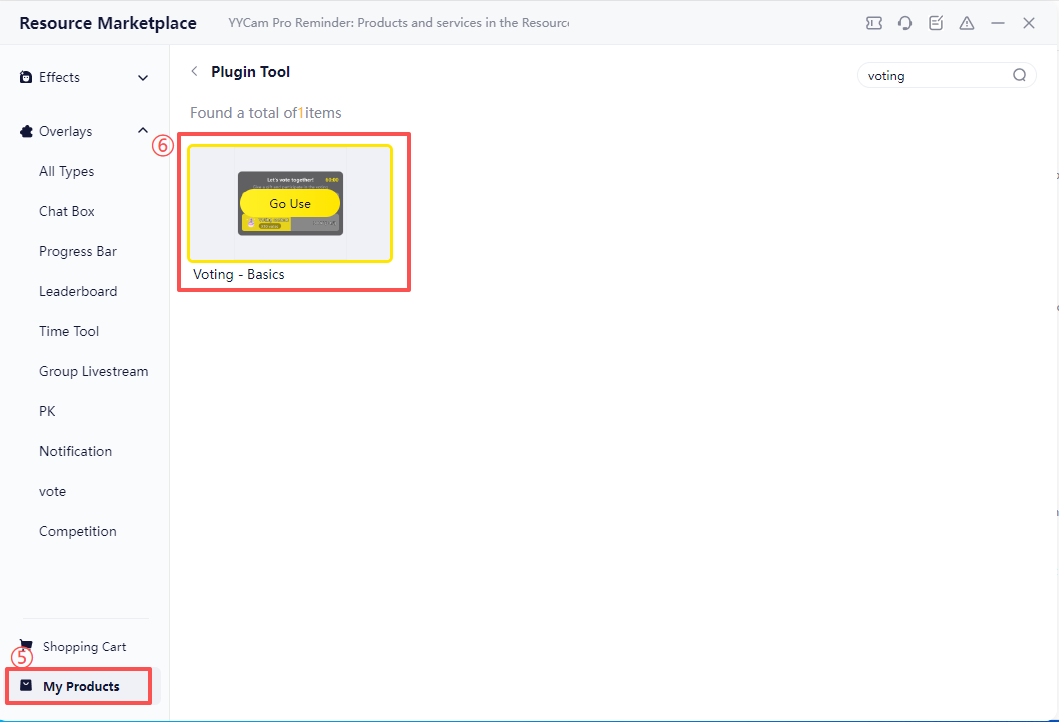
- After purchase, go to "My Products"
- Find the purchased poll plugin and click "Go Use"
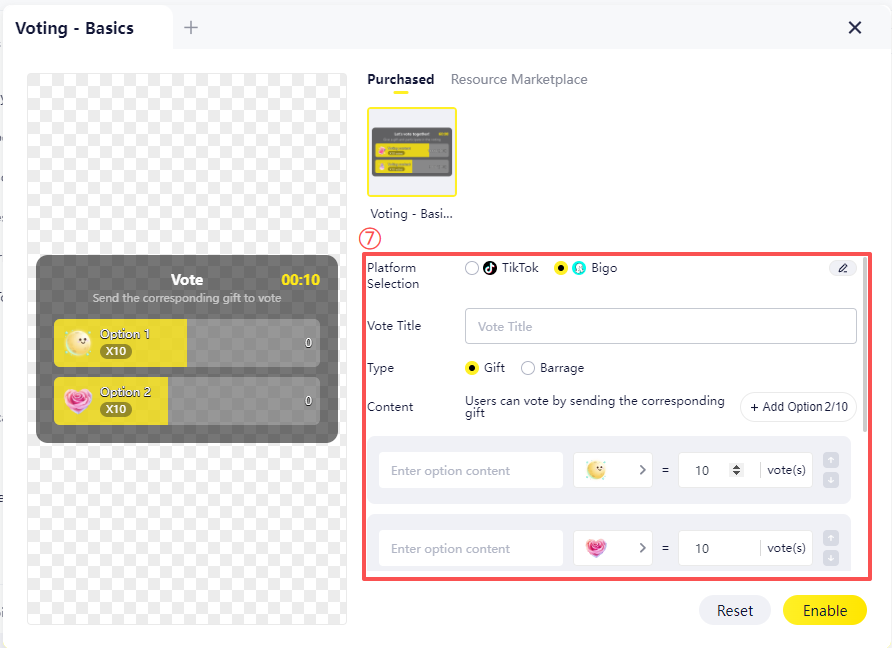
- Configure the poll information based on your live stream needs
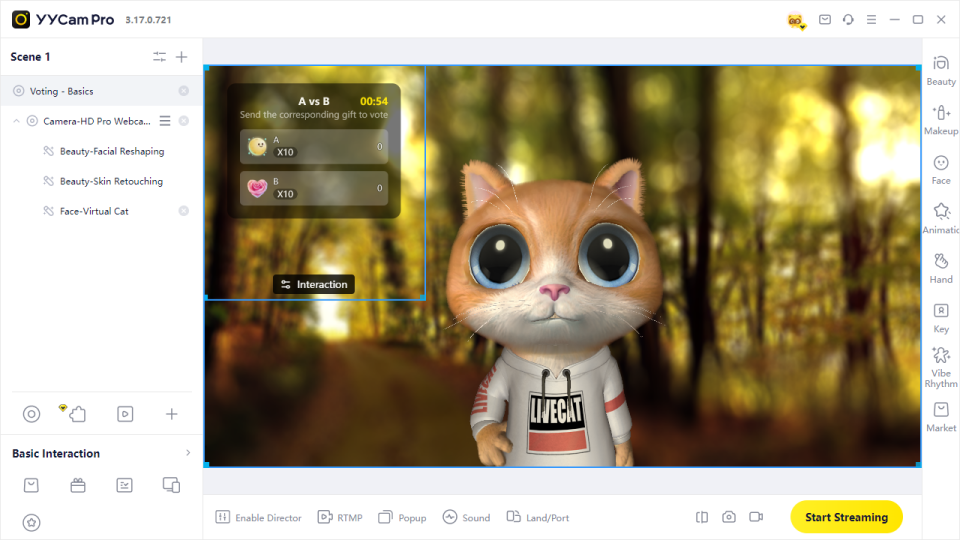
- Turn it on, and the poll will appear on the live screen
4. Poll Configuration
On the poll configuration page, you can set up the following information:
- Platform: Supports TikTok and BIGO Live
- Poll Title: Enter the topic of the poll, such as “Which performance do you want to see next?”
- Poll Type: Choose either Gift Voting or Comment Voting
- Poll Template:
For sports-related scenes, you can choose Country PK Template or Player PK Template
For other scenarios, you can choose the Standard Template
- Poll Options: Set at least 2 options and no more than 10 options. It is recommended to use 2–4 options for easier participation.
- Poll Duration: Customize the voting time based on your live stream flow.
- Display Style: Choose how results are displayed, such as vote count or percentage.
- Voting Rules: Set whether the same user can vote multiple times for the same option.
- Other Settings: Choose whether to sort the final results in descending order after the poll ends.
- Window Opacity: Adjust the transparency of the poll display window to better match your live screen.
- Enable Status: After confirming the settings, enable the poll to display it on the live screen.
Tip: Keep the poll title short and clear. Avoid using too many options so viewers can understand and participate quickly.
5. Best Practices
To achieve better interaction results, we recommend the following:
- Keep the question simple and clear :Avoid long titles or complicated options.
- Use fewer options:2–4 options are recommended for faster decision-making.
- Avoid blocking key content: Place the poll near the edge of the screen, such as the left, right, or bottom area.
- Use polls at the right time: Polls work well during warm-up, product introduction, event interaction, match discussions, and closing feedback.
- Respond to poll results: Explain or adjust your content based on the results so viewers feel their participation matters.
6. FAQ
1. Where can I use the poll plugin after purchase?
After purchase, go to "My Products", find the poll plugin, and click "Go Use" to enter the configuration page.
2. Where will the poll appear after it is enabled?
Once enabled, the poll will appear on the live screen. Viewers can vote based on the on-screen instructions, and the streamer can view real-time results.
3. Can I change the poll content during a live stream?
Yes. You can reconfigure the poll information and start a new poll as needed. It is recommended to confirm whether the current poll has ended before changing it to avoid affecting the viewer experience.
7. Summary
YYCam Pro Interactive Poll helps streamers quickly create live interactions and allows viewers to participate in content decisions and topic discussions. With real-time result display, streamers can better understand audience preferences and improve live engagement.