YYCam Pro Plugin Tool: “Match Info · Live Score” User Guide
1. Key Features
- Real-time match updates: Bind a match data source with one click. No need to switch screens manually.
- Multiple design styles: Choose from different score display styles in the Resource Center to match your livestream theme.
- No interruption to livestreaming: Once configured, the plugin can be overlaid on the livestream screen without switching away from the game or main interface.
- Easy to use: The process from purchase to setup is simple and beginner-friendly.
2. Use Cases
“Match Info · Live Score” is suitable for:
- Sports livestreaming: Display football match scores.
- Match commentary livestreams: Show match progress while providing live commentary.
- Online events: Display team names and scores for events that require score updates.
3. How to Use
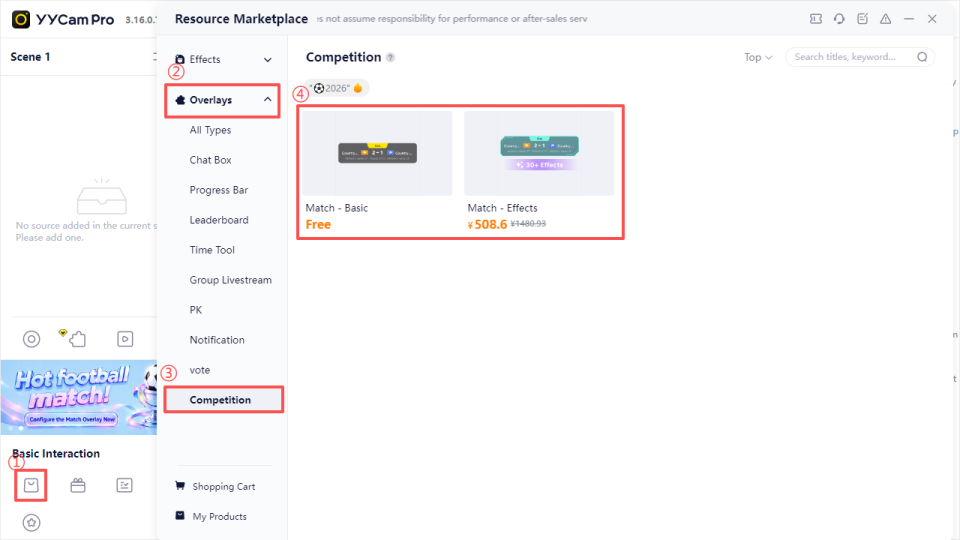
Step 1: Purchase the Plugin in “Resource Marketplace”
Go to the YYCam Pro main interface → Click “Resource Marketplace ” → Find “Match” under “Overlays” → Select your preferred design style → Click Purchase.
If it is a free plugin, simply add it to your account.
Step 2: Launch from “My Products"
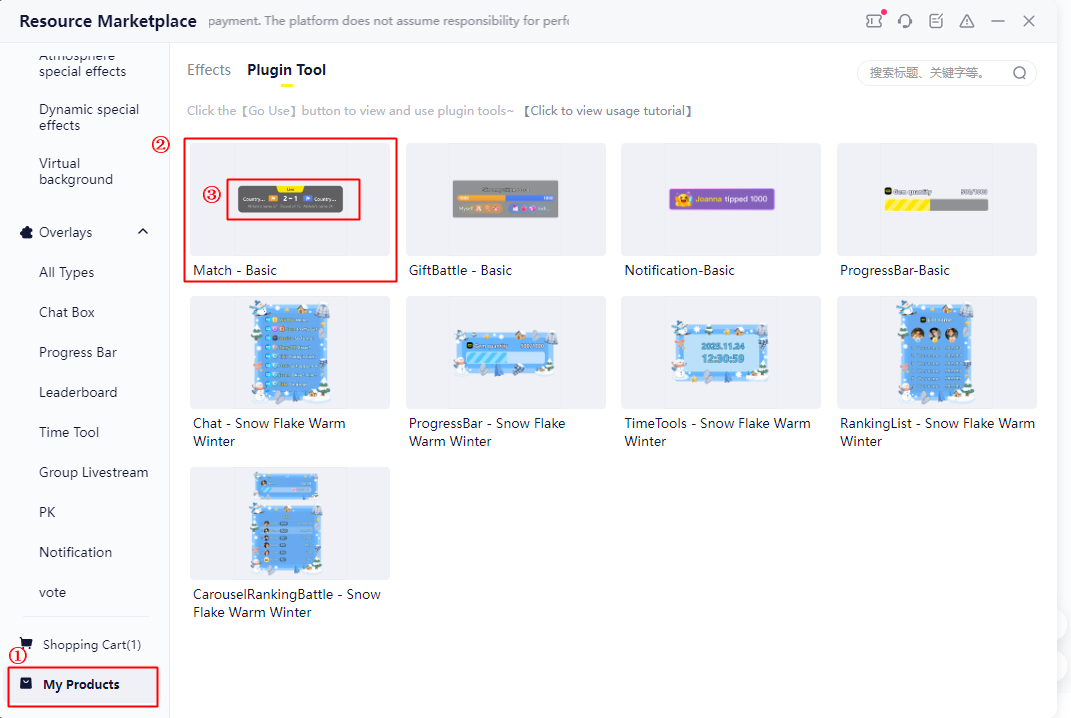
Go to “My Products” → Find the purchased live score plugin → Click “Go Use ” to enter the plugin configuration page.
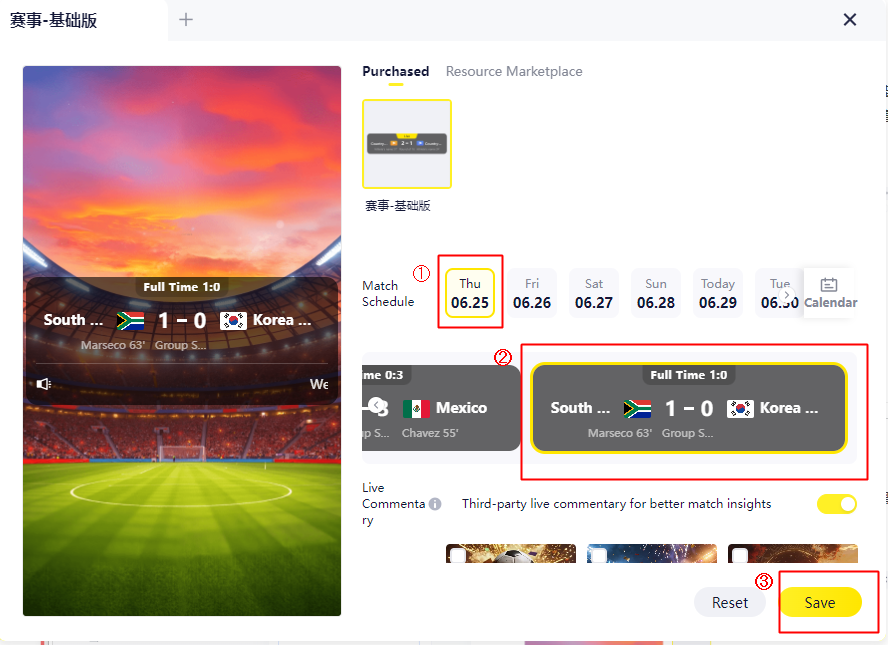
Step 3: Configure Match Information
- Match Schedule: Select the match date and match fixture in the plugin panel.
- Live Commentary: Third-party real-time commentary. When enabled, it helps viewers better understand the current match status.(The commentary does not represent the platform’s official views.)
- Goal Effect: When enabled, a visual effect will be triggered automatically when a goal is scored.
- Window Transparency: Adjust the transparency based on your livestream layout to match the overall visual style.
Step 4: Enable Livestream Overlay
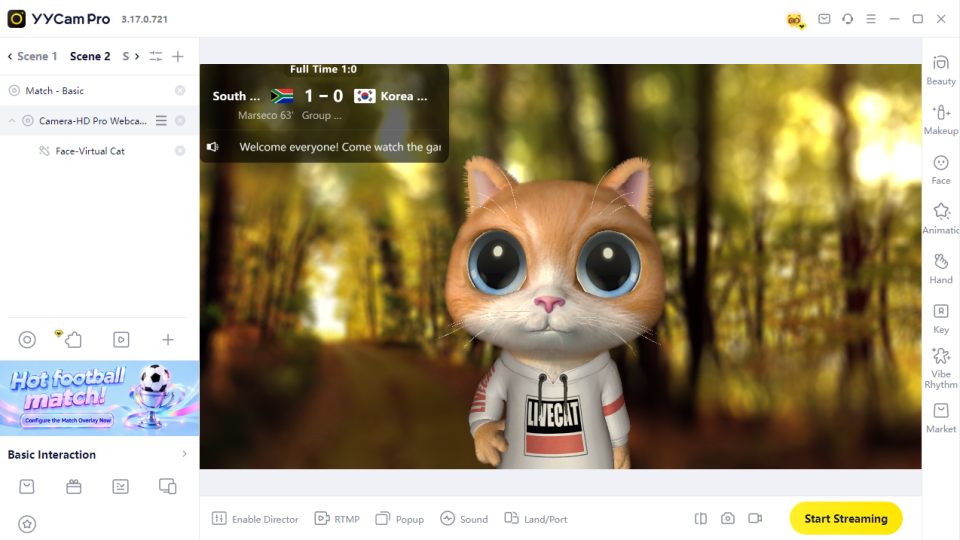
- After configuration, enable the plugin display.
- Once enabled, the “Match Info · Live Score” component will appear on your livestream screen.
- You can check the display in the livestream preview and adjust its position, size, and style as needed.
- Start livestreaming. The score will update automatically according to the selected match data, with no manual operation required.
4. Usage Tips
1. Test Before Going Live
Complete the purchase, configuration, and preview before your official livestream to ensure the score information displays correctly.
2. Keep Information Clear and Readable
Scores and team names are the most important information for viewers. Avoid placing the score panel near screen edges or behind avatars, comments, stickers, or other visual elements.
3. Maintain a Clean Layout
It is recommended to place the score component at the top, bottom, or corner of the screen. This keeps the match content visible while allowing viewers to check the score easily.
5. FAQ
Q: Where can I find the plugin after purchase?
A: After purchase, go to “My Products”, find the plugin, and click “Go Use ” to configure it.
Q: Can I display multiple matches at the same time?
A: Currently, one plugin instance supports only one match.
Q: Can the match information panel be resized?
A: Yes. You can drag the edge of the panel to scale it proportionally. However, making it too small may affect readability. We recommend keeping it at 80% or more of its original size.
6. Summary
“Match Info · Live Score” helps streamers display team information, live scores, and match status directly on the livestream screen. It improves viewer experience and makes football livestreams look more professional.
For further product suggestions or customization requests, feel free to contact the product team.